A drone hyperlapse is like a time machine with a camera. It compresses hours into seconds, smooths the motion into a perfect glide, and turns a static landscape into something that feels alive. You don’t just watch the scene — you fly through it while the subjects speed by.
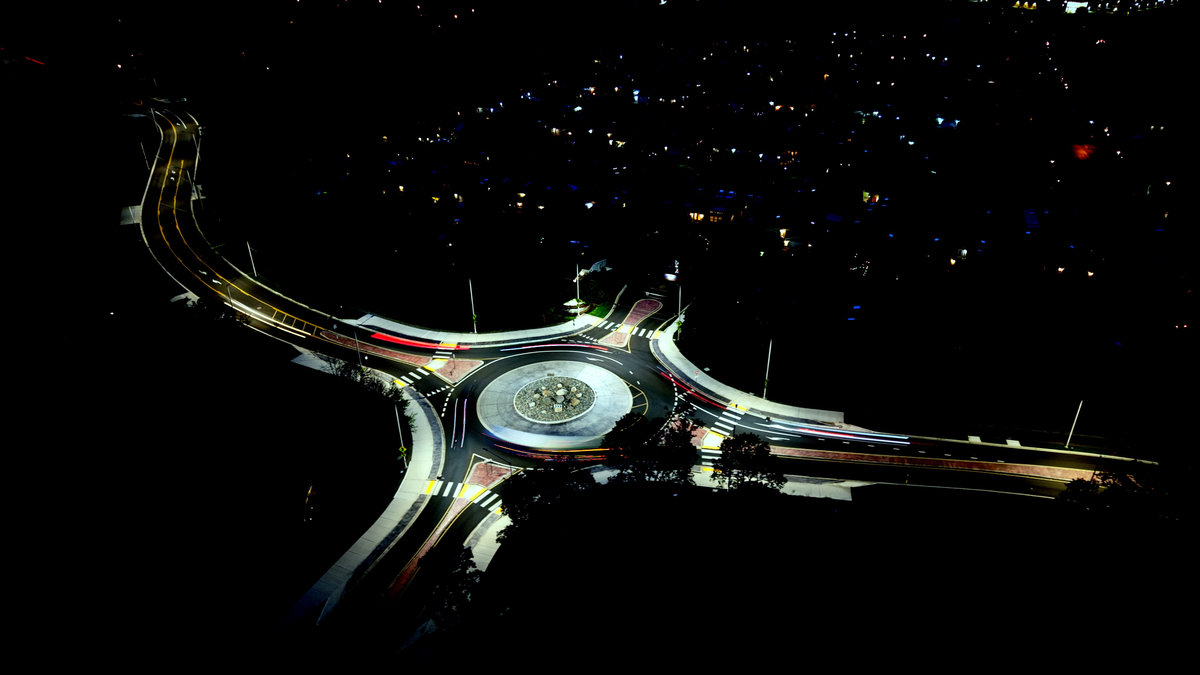
I’ve shot two hyperlapses this year, and I couldn’t be happier with how they turned out (well, it took me three attempts to get the roundabout hyperlapse result I was after). The first was a Mt. Rainier sunrise in June — the shot starts dark, then the drone pushes in as the morning light catches the clouds over the peak and the mountain’s details come into view. The second was a night flight capturing car light streaks spiraling through a local roundabout.
Here’s the workflow I used to capture the images with my DJI Air 3S and edit in Final Cut Pro: pre-flight planning, in-camera settings, and a post-production hack that pulls the whole thing together.
What is a Hyperlapse?
A timelapse is a series of images captured at set intervals and stitched together into a clip — each image is one frame of the video. A hyperlapse is a moving timelapse: the drone flies through space while shooting frames at set intervals. In a regular timelapse, the camera stays locked in one position and time moves. In a hyperlapse, the drone physically repositions between every single frame.
That combination — motion plus time compression — is what creates these dynamic and cinematic effects. A 30-minute sunrise collapses into a 10-second rush of light. Cars at a roundabout become streaks of red and white tracing perfect circles in the dark. Your eye can’t process that movement in real life. The camera can.
Here’s the quick comparison:
| Type | Camera | Time | Best For |
|---|---|---|---|
| Timelapse | Locked in position | Passes | Clouds, sunsets, construction |
| Hyperlapse | Moves through space | Passes | Landscapes, cityscapes, “flying through” shots |
| Video | Real-time | Real-time | Any motion capture |
Camera Settings for Drone Hyperlapse
These are the settings I used with my Air 3S to create the two hyperlapses, but the logic applies to any drone you’re flying. One thing to keep in mind: the Air 3S has a fixed aperture, so I have to be strategic with shutter speed and ND filters to get the exposure right. Some higher-end drones let you adjust the aperture manually; since I can’t, those two tools control the light.
Five Important Settings
Plan these camera settings before you fly:
- Interval — seconds between shots
- Shutter speed — motion blur vs. crisp frames
- ISO — sensor sensitivity (lock it — 100–400 in low light).
- White Balance — locked to avoid flicker (I lock at 5500K for sunrise and night)
- ND Filter — light control, needed for the long exposures that create motion blur and light streaks
Built-In Hyperlapse Mode vs. the Old School Method
DJI drones have a built-in hyperlapse mode with four automated settings: Free, Circle, Course Lock, and Waypoint.
I used the Free setting for the Mt Rainier shoot. That clip is really a timelapse, not a true hyperlapse — in Free mode, I flew to 400 ft and held the drone stationary. I turned it into a faux hyperlapse in Final Cut Pro by zooming in slowly to create the feel of camera movement.
For the night hyperlapse, I did not use the built-in Hyperlapse mode. Instead, I used what pilots call the “old school method” — the Waypoints flight feature combined with timed photo capture. (Not DJI’s Hyperlapse “Waypoint” setting — this is the Waypoints flight mode paired with the camera’s Timed Photo.)
The reason: the built-in mode ties your shutter speed to your interval. Per Drone Wilder (https://youtu.be/ptXaGzVWFs4), at a 2-second interval the longest shutter available is 1/3 of a second. Confirmed on my Air 3S: the cap scales — 1.3 seconds at a 3-second interval, 2 seconds at a 5-second interval. So the mode can reach 2-second exposures, but only at a 5-second interval, and longer intervals make footage jumpy. The old school method decouples them: my night keeper paired a 3-second interval with a 2-second shutter. Smooth motion, light streaks — a combination the built-in mode won’t allow. So: old school method.
Two specs worth knowing: the Air 3S’s slowest true shutter is 2 seconds — the hyperlapse mode’s interval coupling is a further restriction on top of that. And the advertised 8-second long exposure? That’s simulated long exposure — 12MP, single photo only. It composites multiple captures into one image: great for a single still of light trails, but it can’t drive a hyperlapse, which needs individual frames at your interval.
Here’s the workflow:
- Fly to each point along the flight path you want the drone to follow.
- At each point, frame the shot manually and drop a waypoint.
- Set the timed photo capture to your interval and let it run.
Why go old school? Three reasons:
- More control. You decide the flight path, altitude, and camera angle at every waypoint.
- Reusable missions. Waypoint missions can be saved and reflown under different conditions.
- Better results in low light. Timed Photo capture lets you lock the long exposures the built-in mode caps — that’s what creates motion blur and light streaks.
Interval and Shutter by Scene
The interval affects the smoothness of the final clip. Use a short interval for fast-moving subjects and a longer one for slow-moving scenes.
In my projects, 2–3 second intervals have produced the smoothest footage. Longer intervals tend to look jumpy.
For the Mt Rainier flight, I set the interval to 2 seconds and left the shutter on auto for the entire sequence. I wanted crisp images through changing light, so auto shutter was the right call.
For the roundabout night shoot, I used 3-second intervals — but because I wanted light streaks, the shutter speed was set to 2 seconds.
Sunrise Hyperlapse Settings (Mt Rainier)
Here’s what I used for the Mt Rainier flight on June 12, 2026:
| Setting | Value |
|---|---|
| Time | 4:44 AM |
| Mode | Hyperlapse, Free mode |
| Interval | 2 seconds |
| Shutter | Auto |
| ISO | Locked at 400 |
| Format | 48MP RAW |
| ND Filter | None — low light, no need |
| White Balance | Locked at 5500K |
| Gimbal | 0° (mountain framed) |
No ND filter here because the light was low and transitioning. Adding an ND filter at 4:44 AM would have over-darkened the scene.
The result: 750 RAW images of the mountain starting dark and gradually brightening as the sun rose to the northeast of it. The “time passing” element carried the shot — you can literally watch the sunrise wash the clouds in gold as the camera pushes toward the peak.
Night Hyperlapse Settings (Roundabout)
For the night flight on October 1, 2026, I flew at 7:10 PM — the end of Blue Hour. My goal was capturing car light streaks going around a roundabout:
| Setting | Value |
|---|---|
| Time | 7:10 PM (end of Blue Hour) |
| Mode | Waypoint (old school method) |
| Interval | 3 seconds |
| Shutter | 2 seconds (for light streaks) |
| ISO | Auto (this was my mistake — more below) |
| Format | 12MP RAW |
| ND Filter | ND8 (to cut light for the 2s shutter) |
| White Balance | Locked at 5500K |
| Gimbal | Locked on the center of the roundabout |
The 2-second shutter is the key here. It’s long enough that passing cars create natural light streaks instead of just being blurs. The ND8 filter cuts the ambient light so the 2-second exposure doesn’t blow out the streetlights.
Result: 296 frames over 14 minutes of shooting — inside a 25-minute total flight. Light trails and motion blur from passing cars.
Quick Reference: Settings by Light Condition
| Light | ISO | Shutter | ND | White Balance |
|---|---|---|---|---|
| Bright daylight | 100 | 1/100–1/500 | ND16–ND128 | Locked |
| Golden hour | 100–200 | Auto | ND8–ND32 | Locked 5500K |
| Sunrise/sunset (low) | 100–400, locked | Auto | None | Locked 5500K |
| Overcast day | 100–200 | 1/60 | ND4 | Locked |
| Night (streetlights) | 100–400, locked | 1–2s | ND8 | Locked 5500K |
Why RAW Instead of JPEG
RAW gives you 12-bit color depth and the ability to recover highlights and shadows in post. JPEG is 8-bit with baked-in processing — less latitude for grading night scenes.
The trade-off is file size. My Mt Rainier hyperlapse was 750 images. The night hyperlapse was 296 images totaling 4.12 GB. That’s a lot of data, but RAW is insurance when the light is hard.
For quick daytime shots where you won’t push the grade, JPEG is fine. For night, sunrise, or any high-contrast scene — shoot RAW.
The QuickTime Editing Tip (For Final Cut Pro Users)
Shooting is half the work. The other half is editing. I edit in Final Cut Pro, and here’s a helpful hack I picked up while editing these clips.
The Problem
Final Cut Pro does not handle image sequences of 300 — much less 750 — RAW images very well. Import them directly and FCP bogs down until it’s unusable. Scrubbing stutters, playback chokes, and the whole project grinds to a halt.
I was struggling with this problem. Then I found the solution from Dylan Bates on YouTube: use QuickTime Player to convert the image sequence to a video file first, then import that video into Final Cut Pro. (Credit where it’s due — here’s Dylan’s video: https://youtu.be/LYqLkQ76Po0)
This single step saves hours of frustration. FCP runs smooth because it’s working with one video file, not hundreds of stills.
The QuickTime Conversion Process (Step by Step)
- Pull the SD card. Copy your RAW images to a working folder (make sure they’re numbered sequentially).
- Open QuickTime Player → File → Open Image Sequence → select the first image. QuickTime asks for a frame rate — 24 fps for cinematic, 30 fps for standard motion — then automatically loads all sequentially numbered images. (Frame rate sets your clip length: 750 frames at 24 fps = 31 seconds; the same frames at 30 fps = 25.)
- Export as ProRes 422 HQ. Choose ‘Actual Size’ for Resolution — important for stabilization.
- Import the resulting video into Final Cut Pro for stabilization, color grading, and editing.
That’s it. One intermediate step and Final Cut Pro goes from frozen to fluid.
Editing in Final Cut Pro
Once the video is in FCP:
- Export for YouTube. H.264, 4K, 24fps, high bitrate. YouTube re-encodes everything anyway — don’t waste time on a ProRes export.
- Color grade first. RAW frames are flat. Lift shadows, drop highlights slightly, warm the midtones for sunrise or cool them for night.
- Stabilize the clip. I use FCP’s built-in stabilization.
- Crop from 4:3 to 16:9. The Air 3S shoots 4:3 natively — I crop to 16:9 in post.
Common Mistakes (I Made #1)
I made one of these on the night flight. The other three I’ve watched other pilots make.
Mistake #1: Forgetting to Set ISO to Manual
This is the one I made. I set ISO to 100 but left the camera on Auto ISO, and it drifted to 400 before I caught it. Lucky it turned out fine — the noise is manageable — but it shouldn’t have happened.
Why lock ISO instead of letting it climb? Higher ISO doesn’t add light — it amplifies the signal the sensor already captured, and the noise gets amplified along with it. Night and pre-dawn scenes show every bit of it.
Fix: Double check your camera settings before launch. Manual ISO 100–400 for night hyperlapse. Let the longer shutter handle the light, not the sensor sensitivity.
Rule: Auto ISO is fine for golden hour. Lock it for sunrise and night.
Mistake #2: Wrong ND Filter (or No Filter)
Too dark means motion blur on every frame. Too bright means blown highlights.
Fix: ND8 for golden hour and night. ND16–128 for full daylight. None for pre-dawn low light.
Mistake #3: Forgetting the Part 107 Night Lighting Requirement
If you’re flying at night, you need anti-collision lighting visible for 3 statute miles.
Fix: My Firehouse Arc V Pro strobe is mounted permanently. Test it before every flight. Confirm it’s visible from 3 SM in daylight first — strobes look weaker in daylight than you’d expect.
Mistake #4: Not Shooting RAW
JPEG is fine for golden hour. For night or high-contrast scenes, RAW is insurance.
Fix: Shoot RAW whenever the dynamic range is huge — sunrise, sunset, mixed shadows and highlights.
Gear Checklist for Hyperlapse Flights
My pre-flight bag for a hyperlapse mission:
- Drone: DJI Air 3S (sub-meter hover accuracy, RAW hyperlapse support)
- Batteries: 3 minimum (Fly More Combo — one for setup, one for the hyperlapse, one for B-roll)
- ND filters: DJI ND8 + ND32 + ND128 (from Fly More Combo — need ND4, ND16, ND64 to fill gaps)
- Strobe: Firehouse Arc V Pro (permanent mount for night ops)
- Memory: 128GB+ microSD (SanDisk Extreme Pro — 296 RAW images ≈ 4 GB)
- iPhone: DJI Fly app (framing, settings, QuickTransfer)
- Landing pad: 30″ foldable pad (sunrise = wet grass)
- Headlamp: Red light mode (preserves night vision for VLOS)
- Warm gear: For sunrise flights — hand warmers, extra layers
The Bottom Line
Hyperlapse is a planning exercise, not a snap decision. The settings differ dramatically between sunrise, daylight and night. The editing pipeline — RAW in the field, QuickTime to convert, Final Cut Pro to polish — is the same every time.
The big lessons: match the method to the shot — built-in Hyperlapse mode works great for most shots, old school Waypoints when you need long exposures. Shoot in RAW for more editing flexibility. Use ND filters to avoid overexposure and as a long exposure aid. Set manual ISO for night between 100-400. And if you’re a Final Cut Pro user, the QuickTime image sequence trick will save you a lot of frustration.
Watch Drone Night Hyperlapse Hacks on the 56 Forward channel: https://youtu.be/IjciR0EJgqs

Leave a Reply