
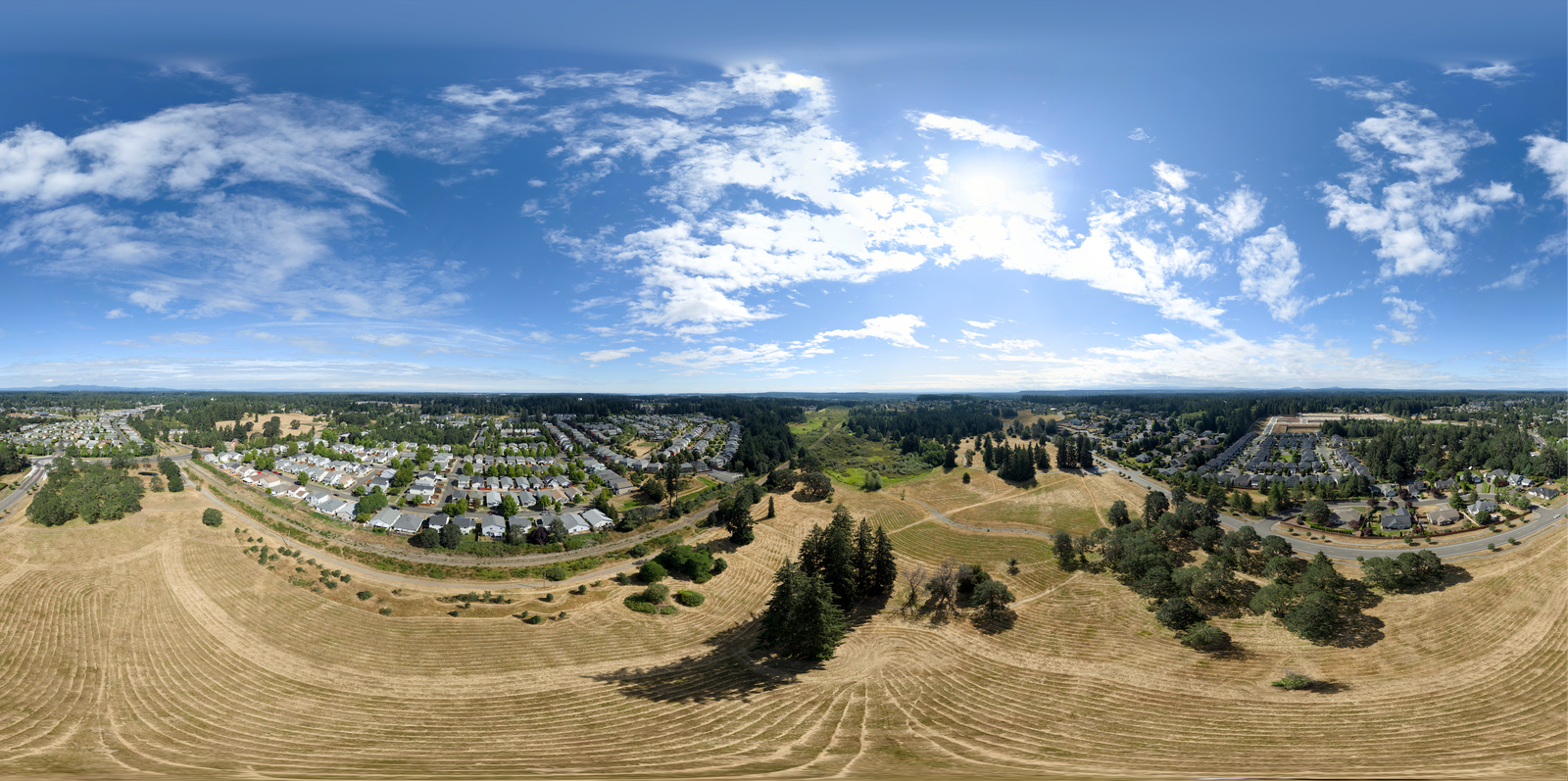
360° drone panoramas create presence — they make viewers feel like they’re standing on site rather than just looking at a picture. For real estate, construction progress, event venues, and property inspections, that immersion means longer engagement, better client communication, and a premium service most drone operators don’t offer.
This is the workflow we used to capture, stitch, and embed an interactive panorama on our WordPress website using free and low-cost tools that together cost less than a single month of a subscription editing suite and panorama hosting service.
If you’ve got a DJI drone (or any drone with a sphere panorama mode) and a Mac, you can do this end to end for less than $80. This workflow will also work on Windows machines, with the exception of Pixelmator Pro for post-processing (Mac-only).
The process is simple, drones such as the DJI Air 3S, have a built-in Sphere Panorama mode that shoots 33 overlapping photos in about 20 seconds. The rest is just stitching those photos together and putting the result on your site.
What You’re Building
An interactive 360° panorama embedded directly on your website. Visitors can drag to look around, zoom in for detail, and go fullscreen for an immersive view — no special app or headset needed.
McAllister Community Park — 360° Drone Panorama
Captured at 300 feet above McAllister Park in Lacey, Washington. Drag to look around, scroll to zoom, and click fullscreen for the full immersive view.
The Tools
The reality is: the DJI app conveniently stitches 360° panoramas automatically and the results are very good. Most people should just use the DJI auto-stitch. But if you want max quality or you’re a control freak — manual is the way.
| Tool | What It Does | Cost |
|---|---|---|
| Panovolo | Stitches 33 RAW files into a single equirectangular panorama | $29.99 one-time |
| Pixelmator Pro (Mac only) | Exposure, contrast, and JPG export | $49.99 one-time (App Store) |
| Pannellum | Free, open-source 360° viewer for the web | FREE |
| WordPress + Code Snippets | CMS + PHP snippet manager for embedding | Free plugin |
Total software cost: $79.99 — one time, no subscriptions.
For context: Adobe Lightroom + Photoshop alone runs $120/year. Kuula, a popular 360° hosting platform, starts at $16/month ($192/year). We’re replacing both with one-time purchases and a free open-source viewer.
Step 1: Pre-Flight Planning
Before you fly, check three things:
Weather: You want calm conditions — wind under 10 mph. Wind causes the drone to drift between shots, which creates stitching errors. Overcast or partly cloudy days actually work well because they reduce harsh shadows and extreme dynamic range.
Airspace: Verify you’re in uncontrolled Class G airspace, or get LAANC authorization if you’re near an airport. Check TFRs (Temporary Flight Restrictions) via the B4UFLY app or tfr.faa.gov.
Camera settings on the DJI Air 3S:
- Mode: Photo → Panorama → Sphere
- File format: RAW (DNG) — not JPEG. RAW gives you far more data for stitching and post-processing.
- EV: -0.3 to -0.7 (slight underexposure preserves highlight detail in the sky)
- White balance: Manual — lock it so color doesn’t shift between frames
- No filters — polarizers cause sky banding, ND filters can interfere with auto-exposure
Step 2: Capture
- Fly to your target altitude (300–350 ft is typical for a good vantage point)
- Position the drone over your panorama location
- Select Sphere Panorama mode in the DJI Fly app
- Press shutter — the drone automatically captures 33 photos over ~15–20 seconds, covering the full sphere
- Wait for the 100% completion indicator
- Do a quick gallery review on the controller to confirm all frames captured
- Land
Tips for clean captures:
- Wind is the #1 stitching killer. If it’s gusty, reschedule.
- Avoid scenes with lots of movement — cars, waves, people create ghosting artifacts in the stitch
- Large bodies of water and uniform surfaces confuse stitching software. Textured landscapes work best
- Cloudy-bright days reduce dynamic range and make stitching easier
Step 3: Offload the Photos
Use a USB cable to connect your drone to computer, or insert the SD card from your drone into your computer’s card reader. Your drone saves each panorama in a separate folder, typically found in the DCIM/PANORAMA directory on the SD card. Confirm that you can see the images.
PANOVOLO can stitch the panoramas directly from the SD card, or you can copy the images to your computer first.
Power off the drone and remove the SD card. On the card, navigate to:
DCIM/
├── Panorama/          ← Your 33 source photos (RAW DNG)
│   ├── DJI_0001.DNG
│   ├── DJI_0002.DNG
│   ├── ... (33 files total)
│   └── DJI_0033.DNG
└── DJI-001/           ← Auto-stitched JPEG (reference only)
    └── DJI_0001.JPG
Copy all 33 DNG files to your working folder. That’s it — no conversion needed. Panovolo reads DNGs directly.
Step 4: Stitch with Panovolo
Panovolo is a native macOS app (also runs on Windows) built specifically for drone panoramas. It costs $29.99 as a one-time purchase — no subscription, no cloud dependency.
Why Panovolo:
- Reads drone GPS and gimbal orientation data from EXIF metadata for better alignment
- Handles DNG files natively — no need for pre-conversion to JPEG
- Auto-fills the sky gap at the top of the sphere (the “zenith hole” that other software leaves blank)
- One-click stitch — no manual alignment steps
- Curved-horizon correction
The process:
- Open Panovolo
- Load all 33 DNG files
- Panovolo auto-detects the panorama type from EXIF data
- Click stitch
- Export as TIFF or JPG
That’s it. Simple process that’s completed in a couple minutes.
Step 5: Post-Process in Pixelmator Pro
Open the stitched panorama in Pixelmator Pro ($49.99 one-time, native Mac):
- Bump exposure slightly if the image is dark
- Adjust contrast for punch and clarity
- Lift shadows, recover highlights if the dynamic range is wide
- Export as JPG at quality 100
The exported file will be large — our McAllister Park panorama was 12114 × 6023 pixels, about 118 MB. That’s fine for a portfolio piece. For production sites, you may want to downsize to 8192 × 4096 for faster loading.
Step 6: Set Up Pannellum (Free 360° Viewer)
Pannellum is a lightweight, open-source JavaScript panorama viewer. No account, no hosting fee, no watermark. It runs entirely in the browser.
Download these files:
pannellum.jspannellum.css
Create an HTML file (e.g., mcallister.html):
R2, my AI assistant created the code, I simply copy and pasted it into a text file and then uploaded the three files (pannellum.js, pannellum.css, and mcallister.html) to my website host.
<!DOCTYPE html>
<html>
<head>
    <meta charset="utf-8"/>
    <title>360 Panorama - McAllister Community Park</title>
    <link rel="stylesheet" href="pannellum.css"/>
    <script src="pannellum.js"></script>
    <style>
        #panorama { width: 100vw; height: 100vh; }
        body { margin: 0; padding: 0; }
    </style>
</head>
<body>
    <div id="panorama"></div>
    <script>
        pannellum.viewer('panorama', {
            "type": "equirectangular",
            "panorama": "https://yoursite.com/wp-content/uploads/2026/07/your-pano.jpg",
            "autoLoad": true,
            "showZoomCtrl": true,
            "showFullscreenCtrl": true
        });
    </script>
</body>
</html>
Upload the HTML file, Pannellum JS/CSS files, and your panorama JPG to a folder on your server (e.g., wp-content/uploads/360/).
Step 7: Embed on Your WordPress Site
WordPress blocks raw iframe embeds by default, so we used the Code Snippets plugin (free) to create a shortcode:
function pannellum_embed_shortcode($atts) {
    $src = isset($atts['src']) ? $atts['src'] : '';
    return '<iframe src="' . esc_url($src) . '"
        style="width:100%;height:500px;border:none;border-radius:8px;"
        allowfullscreen></iframe>';
}
add_shortcode('pannellum', 'pannellum_embed_shortcode');
Then in any page or post:
[pannellum src="https://yoursite.com/wp-content/uploads/360/your-pano.html"]That’s it. Visitors can now drag to look around, zoom, and go fullscreen — right on your site, no third-party platform required.
Step 8: The CDN Gotcha (If Your Host Uses One)
If your website hosting provider uses a content delivery network (CDN), it will auto-compress your 113MB panorama down to ~316KB on every request. The viewer will still load, but the image will be blurry and pixelated.
The fix: Add a no-transform rule to your .htaccess file:
# Protect full-res panorama from CDN optimization
<FilesMatch "your-pano\.jpg">
  Header set Cache-Control "no-transform"
</FilesMatch>
This tells the CDN to pass that file through untouched while still optimizing everything else on your site. Test with a hard refresh (Cmd+Shift+R) to confirm.
What This Looks Like in Practice
We captured the panorama for this project at McAllister Community Park in Lacey, WA. The full process — from driving to the park to having the interactive pano live on our website — took about 3–4 hours the first time. Subsequent panos will be faster.
The result is an interactive 360° aerial view embedded directly on focus-56.com. No third-party embed, no monthly hosting fee, no software subscription. Just a one-time $80 in software and a drone we already own.
Why This Matters for Your Business
If you’re offering drone services — real estate, construction documentation, event coverage, property inspections — 360° panoramas are a high-value deliverable that most pilots skip because they think the workflow requires expensive software.
It doesn’t.
The panorama you embed on your site becomes a portfolio piece. The same workflow lets you deliver interactive panoramas to clients — real estate agents who want an immersive aerial view of a listing, construction teams who want a progress snapshot they can rotate and inspect, or property owners who want to see their land from every angle.
You can charge for this. And your only software cost is $80, once.
Watch the Full Tutorial
The companion video walks through every step of this workflow with screen recordings, drone footage, and the real problems we hit along the way — including the CDN compression battle.
▶ [Link to YouTube video — add when published]
Tool Links
- Panovolo — Panorama stitching for macOS ($29.99)
- Pixelmator Pro — Image editor for macOS ($50)
- Pannellum — Free, open-source 360° panorama viewer
- DJI Air 3S — Drone with built-in sphere panorama mode
- Code Snippets — Free WordPress plugin for custom PHP

Leave a Reply