
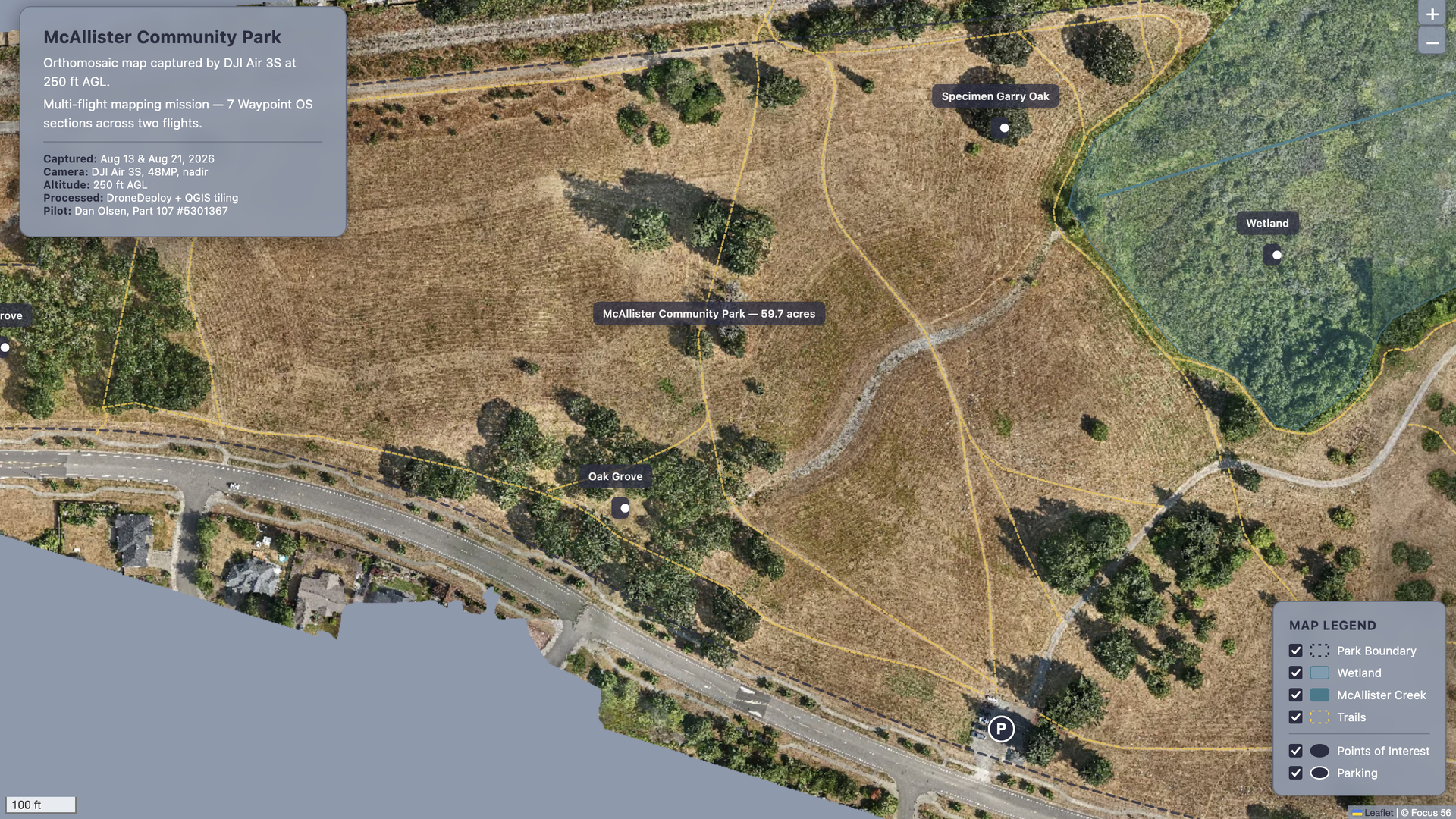
A web map is an interactive map that lives on a website — one where visitors can pan, zoom, and explore a location in detail. Think Google Maps, but custom. Instead of streets and businesses, your web map can show anything: a property boundary, a construction site, a farm, or an entire park.
The most powerful thing you can put in a web map is an orthomosaic — a high-resolution, geometrically corrected aerial image stitched together from dozens or hundreds of drone photos. Unlike a single overhead shot, an orthomosaic captures an entire area with enough detail to zoom in and see individual trees, trails, or park benches. And when you load that orthomosaic into a web map, anyone can explore it right from their browser — no special software, no downloads.
So you have an orthomosaic. Maybe you processed it yourself from drone photos, or maybe you commissioned one from a drone service. Either way, it looks great — every pixel sharp, every detail visible. But now what?
The default move is to export a flat JPEG and call it done. The problem? A flat image can’t be zoomed, panned, or explored. You lose the one thing that makes an orthomosaic special: the ability to explore the image at scale, from a bird’s-eye view down to ground level.
The fix is simpler than you think. With two free tools — QGIS and Leaflet.js — you can turn that orthomosaic into a fully interactive web map. No API keys. No monthly subscriptions. No Google Maps bill at the end of the month.
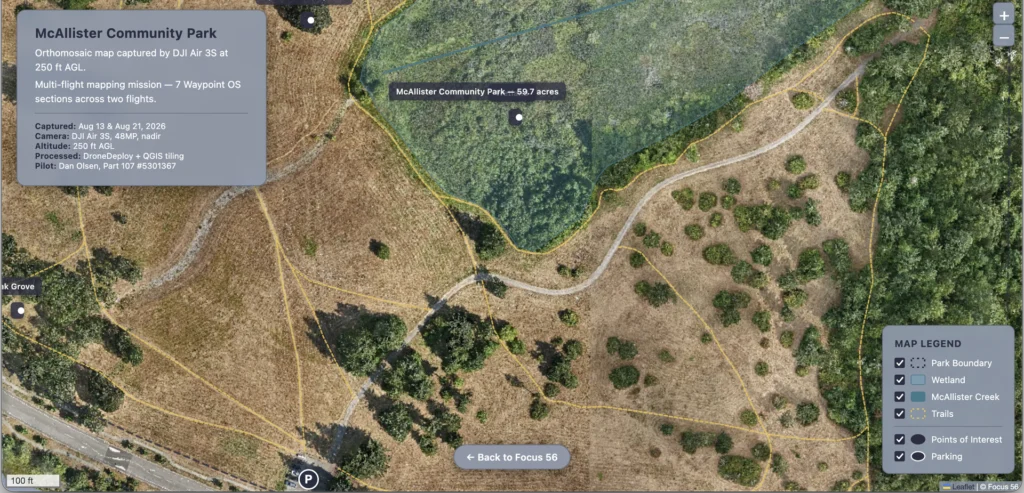
I use this exact workflow for my own portfolio at Focus 56. Here’s a live demo — that’s an interactive web map of McAllister Community Park I flew here in Lacey, Washington. Go ahead and click around. That’s what you’ll be building by the end of this post.
What You’ll Need
All of these are free:
- A completed orthomosaic GeoTIFF — This is your drone map. If you don’t have one yet, I wrote a full guide on what orthomosaic maps are and how to create them. Short version: process your drone photos in WebODM (free, open source) or DroneDeploy (free trial), and export a GeoTIFF.
- QGIS — Free, open-source GIS software. Download it from qgis.org. It runs on Windows, Mac, and Linux.
- Leaflet.js — A free JavaScript library for interactive maps. You don’t download anything; you load it from a CDN with two lines of code.
- Basic web hosting — Any hosting works. I use a standard WordPress site on a cheap shared plan. You just need the ability to upload files via FTP or a file manager.
- A text editor — VS Code, Notepad++, TextEdit, whatever you have. You’ll write about 50 lines of HTML (copy, paste and modify my code shared below).
That’s it. No subscriptions, no API keys, no developer accounts.
Step 1: Start with a Completed Orthomosaic
This tutorial assumes you already have a processed orthomosaic — specifically, a GeoTIFF file. A GeoTIFF is just a TIFF image with geographic data baked into it. It knows where it is on Earth, which is what makes it different from a regular photo.
If you need to create one, read my orthomosaic mapping guide first. The short version: fly your drone in a grid pattern with overlapping photos (70% front overlap, 70% side overlap), feed them into WebODM or DroneDeploy, and export the resulting orthomosaic as a GeoTIFF.
With my DJI Air 3S, I typically get 1-2 meter positional accuracy without ground control points. That’s plenty for park maps, real estate overviews, and construction progress sites. If you need sub-meter accuracy, you’ll want to lay ground control points (GCPs) before flying — but for a web map that people zoom around on, the standard accuracy is fine.
Step 2: Install QGIS
QGIS is the workhorse of the open-source GIS world. It’s been around since 2002, it’s actively maintained, and it can do almost anything the paid GIS packages (ArcGIS, MapInfo) can do.
- Go to qgis.org and download the version for your operating system.
- Install it like any other application. On Mac, it’s a drag-and-drop install. On Windows, run the installer and accept the defaults.
- Open QGIS. You’ll see a blank map canvas, some panels on the left, and a toolbar at the top.
That’s all the setup you need. We’re not doing complex GIS analysis here — we’re just using QGIS to slice our orthomosaic into web map tiles.
Step 3: Load Your Orthomosaic GeoTIFF in QGIS
- Open QGIS and create a new project (Project → New).
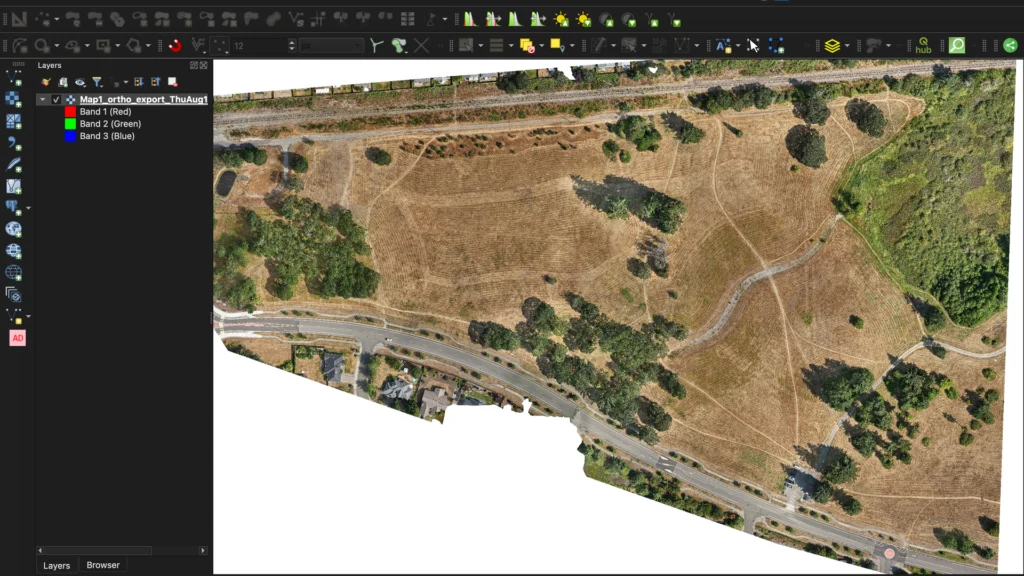
- Drag and drop your GeoTIFF file directly onto the map canvas. Or use Layer → Add Layer → Add Raster Layer and browse to your file.
- Your orthomosaic appears in the map canvas. It might look dark or washed out — that’s normal. QGIS applies a default contrast stretch that you can adjust, but it doesn’t affect the tiles you’ll generate.
- Take a moment to zoom and pan around. Make sure the image looks correct and covers the area you expect.
If your GeoTIFF loads but appears in the wrong location (e.g., somewhere in the middle of the ocean), your file might have a missing or incorrect coordinate reference system. This is rare with WebODM or DroneDeploy exports, but if it happens, right-click the layer → Properties → Source tab → check the assigned CRS.
Step 4: Set the Project CRS to EPSG:3857 (The Critical Step)
This is the single most important step in the entire process. If you skip it or get it wrong, your tiles will come out blank or misaligned. I learned this the hard way.
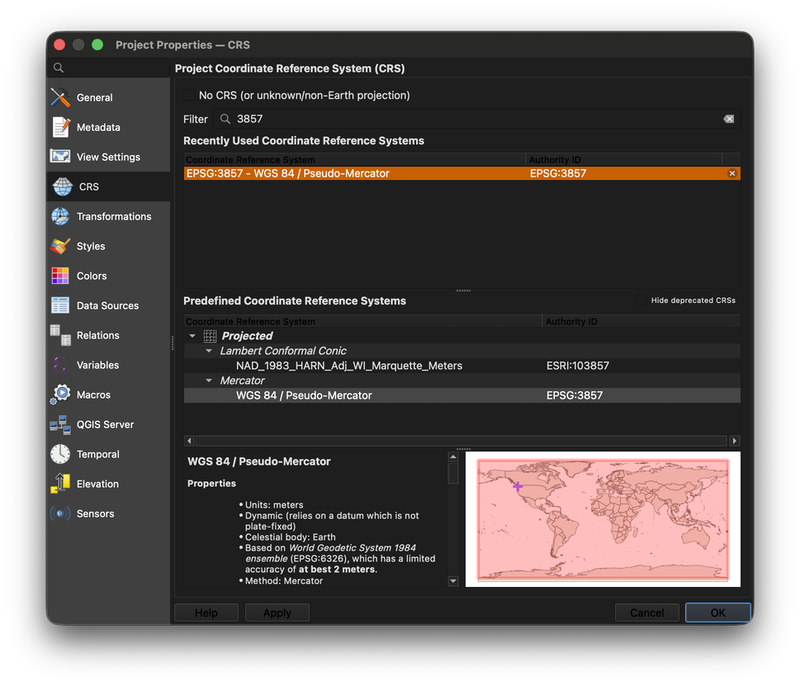
Web map tiles use a specific coordinate reference system called Web Mercator, identified by the code EPSG:3857. This is the projection used by Google Maps, OpenStreetMap, Leaflet, and every other web mapping library. If your QGIS project isn’t set to EPSG:3857, the tile generator will try to reproject on the fly and usually fail silently.
Here’s how to set it:
- Go to Project → Properties → CRS tab.
- In the filter box, type
3857. - Select WGS 84 / Pseudo-Mercator (that’s the friendly name for EPSG:3857).
- Click Apply then OK.
- Your orthomosaic might shift slightly on the canvas — that’s the reprojection. This is normal.
Quick check: Look at the bottom-right corner of the QGIS window. You should see EPSG:3857 displayed there. If you see something else (like EPSG:4326 or EPSG:32148), repeat the steps above.
Step 5: Generate XYZ Tiles
Now we slice the orthomosaic into hundreds of small square images that Leaflet will load on demand.
- In the top menu, go to Toolbox → Generate XYZ tiles (Directory) → Generate XYZ tiles.
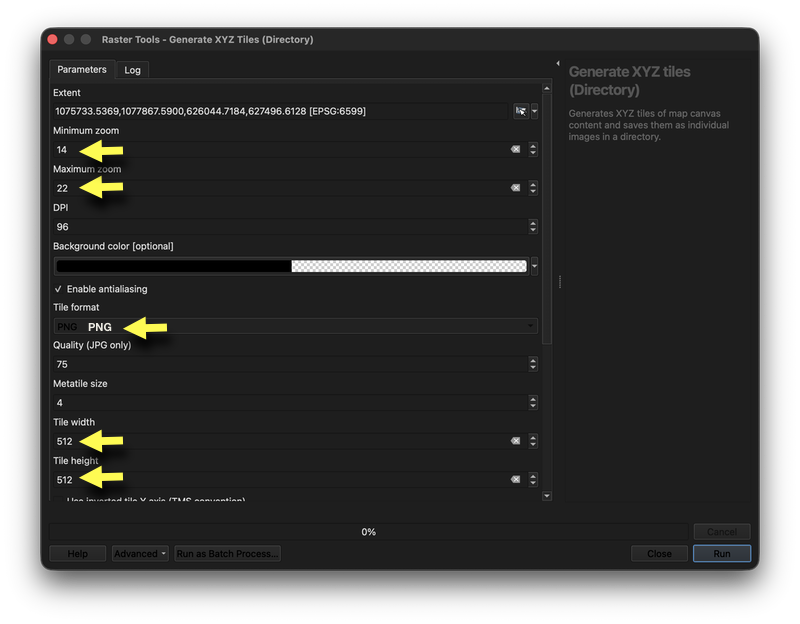
- In the dialog that appears, set these parameters:
- Input layer: Your orthomosaic GeoTIFF (select it from the dropdown)
- Tile size:
512(not the default 256 — 512 is better for high-resolution drone imagery and reduces the number of tile files) - Minimum zoom:
14(neighborhood-level context) - Maximum zoom:
22(pixel-level detail from your drone) - Format:
PNG(lossless — JPEG introduces artifacts that look bad on map imagery)
- Choose an output directory. Create a new folder called
tilessomewhere convenient. The tiles will be saved in az/x/y.pngfolder structure inside this directory. - Click Run.
This process takes a few minutes depending on the size of your orthomosaic and the zoom range. The 60 acre McAllister Park site that we mapped generated approximately 25,000 tile files. When it’s done, you’ll have a folder structure that looks like this:
tiles/
  14/
    2590/
      6201.png
      6202.png
  15/
    5180/
      12402.png
      12403.png
  ...
The z folder is the zoom level, x is the column, and y is the row. Leaflet knows how to request these files automatically — you just point it at the folder.
Why zoom 14 to 22? Zoom 14 shows about a square kilometer — enough context to see the surrounding neighborhood. Zoom 22 gets you down to individual pixels from your drone. That’s the sweet spot for drone orthomosaics. Going below 14 means generating tiles that are mostly empty (your orthomosaic doesn’t cover that much area). Going above 22 doesn’t add detail — you’re just upscaling pixels at that point.
Step 6: Create the Leaflet.js HTML Page
This is where the magic happens. Open your text editor and create a new file called index.html. Here’s the full code — copy it, change the map center coordinates and zoom level, and save it:
<!DOCTYPE html>
<html>
<head>
<title>McAllister Community Park — Drone Map</title>
<!-- Leaflet CSS -->
<link rel="stylesheet"
href="https://unpkg.com/leaflet@1.9.4/dist/leaflet.css" />
<!-- Leaflet JS -->
<script src="https://unpkg.com/leaflet@1.9.4/dist/leaflet.js"></script>
<style>
body { margin: 0; padding: 0; }
#map {
width: 100%;
height: 100vh;
background: #f5f5f5;
}
.map-title {
position: absolute;
top: 10px;
left: 50px;
z-index: 1000;
background: white;
padding: 10px 16px;
border-radius: 4px;
box-shadow: 0 1px 5px rgba(0,0,0,0.3);
font-family: sans-serif;
font-size: 16px;
font-weight: bold;
}
</style>
</head>
<body>
<div id="map"></div>
<div class="map-title">McAllister Community Park — Drone Map</div>
<script>
var map = L.map('map', {
center: [47.0379, -122.7144],
zoom: 16,
minZoom: 14,
maxZoom: 22
});
L.tileLayer('tiles/{z}/{x}/{y}.png', {
tileSize: 512,
zoomOffset: -1,
attribution: 'Imagery © Focus 56'
}).addTo(map);
L.control.scale().addTo(map);
L.control.fullscreen = L.control;
</script>
</body>
</html>Let me break down the important parts:
center: [47.0379, -122.7144]— This is the latitude and longitude where the map opens. Replace these with the center of your orthomosaic. You can find these in QGIS by clicking on the center of your map and reading the coordinates from the bottom status bar.zoom: 16— The initial zoom level when the map loads. 16 is a good starting point for a park or property.minZoom: 14, maxZoom: 22— These must match the zoom range you generated tiles for. If you set maxZoom higher than your tiles, the map will try to load tiles that don’t exist.tileSize: 512— This tells Leaflet that each tile is 512×512 pixels instead of the default 256. This must match what you set in QGIS.zoomOffset: -1— This is the critical companion totileSize: 512. When tiles are 512px, Leaflet needs to offset the zoom level by -1 to line up correctly. If you forget this, your map will appear zoomed out and misaligned.tiles/{z}/{x}/{y}.png— This is the relative path to your tile folder. The{z},{x}, and{y}are placeholders that Leaflet replaces with the correct values for each tile it needs.
The tileSize: 512 and zoomOffset: -1 combo is the #1 thing people get wrong. If your map loads but looks blurry, offset, or shows tiles in the wrong positions, check these two settings first.
Use AI to Write the Code for You
Input this prompt into ChatGPT, Claude or whatever AI you use:
Write an HTML page using Leaflet.js to display map tiles at [your URL], centered on [lat, long], zoom [X-Y], tile size 512
Step 7: Upload Tiles and HTML to Your Website
Now you need to get both the tiles folder and the HTML file onto your web host.
- Zip the tiles folder. Right-click the
tilesfolder and compress it to a.zipfile. You’ll have hundreds (maybe thousands) of small PNG files — uploading them one by one would take forever. Zipping and extracting on the server is much faster. - Upload the zip file to your web hosting account. Use whatever method your host provides — FTP (FileZilla), cPanel File Manager, or SSH if you have it. Upload to a new folder, for example:
/public_html/map-portfolio/. - Extract the zip on the server. In cPanel File Manager, right-click the zip and select “Extract.” If you’re using SSH, run
unzip tiles.zip. You should now see thetiles/folder with thez/x/y.pngstructure intact. - Upload the HTML file to the same directory. Your folder structure on the server should look like:
/map-portfolio/ mcallister-map.html tiles/ 14/ 2590/ 6201.png - Rename
index.htmlto something descriptive likemcallister-map.htmlbefore uploading.
One thing to watch out for: Some web hosts restrict the number of files you can have in a single directory. If you run into this, check if your host supports a flat tile structure or consider using a subdomain. Most shared hosts handle 25,000+ tile files without issue. If you’re mapping a very large site and generating significantly more, check your host’s file limits or consider using a subdomain for your tiles.
Step 8: Test and Share Your Interactive Web Map
Open your browser and navigate to your new map page. For example: https://focus-56.com/map-portfolio/mcallister-map.html
You should see:
- The map load with your orthomosaic imagery
- Zoom controls (+/-) in the top-right corner
- A scale bar at the bottom
- Your title overlay in the top-left
- Smooth panning and zooming as you drag and scroll
Test these things:
- Zoom all the way in to max zoom (22) — confirm the imagery stays sharp
- Zoom all the way out to min zoom (14) — confirm you see the full area
- Pan around the edges — confirm tiles load in all directions
- Test on your phone — Leaflet is mobile-responsive by default
If everything works, you now have a professional interactive drone map hosted on your own website. Share the link with clients, embed it in blog posts, or add it to your portfolio.
Optional: Add Vector Overlays with GeoJSON
This is where you can take your map from “cool” to “genuinely useful.” You can add features such as park boundaries, trail paths, streams, wetland areas, and labeled points — all as toggleable layers.
The workflow:
- In QGIS, digitize the features you want. Create a new layer (Layer → Create Layer → New Shapefile Layer), set the geometry type (Point, Line, or Polygon), and trace over your orthomosaic.
- Export each layer as GeoJSON. Right-click the layer → Export → Save Features As → Format: GeoJSON. Save to the same folder as your HTML file.
- Add the GeoJSON to your Leaflet map. Here’s the code pattern:
// Load a park boundary polygon
fetch('park-boundary.geojson')
  .then(response => response.json())
  .then(data => {
    L.geoJSON(data, {
      style: { color: '#2e8b57', weight: 2, fillOpacity: 0.1 }
    }).addTo(map);
  });

// Load trail lines
fetch('trails.geojson')
  .then(response => response.json())
  .then(data => {
    L.geoJSON(data, {
      style: { color: '#8b4513', weight: 3, dashArray: '5,5' }
    }).addTo(map);
  });

// Load labeled markers
fetch('points-of-interest.geojson')
  .then(response => response.json())
  .then(data => {
    L.geoJSON(data, {
      pointToLayer: function(feature, latlng) {
        return L.marker(latlng).bindPopup(
          '<strong>' + feature.properties.name + '</strong><br>' +
          feature.properties.description
        );
      }
    }).addTo(map);
});- Add a layer control so users can toggle overlays on and off:
var overlays = {
  "Park Boundary": parkBoundaryLayer,
  "Trails": trailsLayer,
  "Points of Interest": poiLayer
};
L.control.layers(null, overlays).addTo(map);
This is exactly what I did on the McAllister Park map. You can toggle trails, streams, wetlands, and labels independently. It turns a simple image into a real planning tool.
Troubleshooting Common Issues
My tiles come out blank or mostly transparent
Fix: Your QGIS project CRS is not set to EPSG:3857. Go back to Step 4. This accounts for about 90% of the problems people run into with this workflow.
The map loads but tiles are misaligned or shifted
Fix: Check that tileSize: 512 and zoomOffset: -1 are both set in your L.tileLayer() options. If you used 256px tiles in QGIS, remove both of these settings (or set tileSize to 256 and zoomOffset to 0).
Tiles load but the map is zoomed to the wrong location
Fix: Your center coordinates in L.map() are wrong. Open QGIS, click on the center of your orthomosaic, and read the coordinates. Note that QGIS may display in a different CRS — make sure you’re reading EPSG:4326 (WGS 84) latitude/longitude, not EPSG:3857 meters.
The map works on my computer but not after uploading
Fix: Check your file paths. The tiles/{z}/{x}/{y}.png path in your HTML must be relative to where the HTML file lives on the server. If you put the HTML in a different folder than the tiles, adjust the path accordingly (e.g., ../tiles/{z}/{x}/{y}.png).
Some tiles are missing (gray squares at certain zoom levels)
Fix: This happens when your zoom range in Leaflet doesn’t match what you generated in QGIS. If you generated tiles for zoom 14-22 but set maxZoom to 23 in Leaflet, the map will try to load tiles that don’t exist. Make sure minZoom and maxZoom match your generated tile range.
The map is slow to load
Fix: This is normal for the first load. The browser caches tiles after the first visit, so subsequent loads are much faster. If you have a very large orthomosaic generating 10,000+ tiles, consider reducing your max zoom to 20 or 21 to cut the tile count significantly.
Conclusion
You now have a fully interactive web map on your own website — no API keys, no subscriptions, no per-tile pricing. Just free tools and your own web hosting.
The workflow is simple once you’ve done it a few times: process your drone photos into an orthomosaic, set QGIS to EPSG:3857, generate 512px PNG tiles, write 50 lines of HTML with Leaflet.js, and upload everything to your site.
If you run into issues, check the troubleshooting section above. The EPSG:3857 CRS and the 512px tile settings are the two things that trip people up most. Get those right and everything else falls into place.
Want a Drone Map of Your Own Property?
I fly a DJI Air 3S here in Thurston County, Washington, and I’m FAA Part 107 certified. If you need an interactive drone map for a park, property, construction site, or real estate listing — get in touch at focus-56.com. I handle the flight, the processing, and the web deployment. You get a link you can share with anyone.
Watch the Full Video Tutorial
This blog post is a companion to Host an Interactive Web Map on Your Website with Leaflet.js (Free) on my YouTube channel, where I walk through this entire process screen-by-screen. Subscribe to be notified when it goes live — the video drops soon, and it makes every step in this post easier to follow along with.
If you found this helpful, the best thing you can do is share it with someone who’s been paying for web map subscriptions they don’t need. There’s a free way to do almost everything in drone mapping — this is one of the best examples.
Written by Dan Olsen, FAA Part 107 certified drone pilot and owner of Focus 56, a drone services business based in Lacey, Washington.

Leave a Reply